



Apple iPhone
- iPhone 15 / 15 Plus / 15 Pro / 15 Pro Max
- iPhone 14 / 14 Plus / 14 Pro / 14 Pro Max
- iPhone 13 / 13 Mini / 13 Pro / 13 Pro Max
- iPhone 12 / 12 Mini / 12 Pro / 12 Pro Max
- iPhone 11 / 11 Pro / 11 Pro Max
- iPhone XS / XS Max
- iPhone XR
- iPhone SE (2020, 2022)
Apple iPad
- iPad Air (Generation 3,4)
- iPad Pro (Generation 1 to 5)
- iPad Mini (Generation 5,6)
- iPad 9.7 (Generation 7,8,9)
Apple Watch
- Apple Watch Series 3 / 4 / 5 / 6 / 7 / 8 / 9 (LTE 4G)
- Apple Watch Ultra 1 / 2
- Apple Watch SE
Caution:
- iPhones from China Mainland, Hong Kong and Macau DO NOT support eSIM (Except for iPhone 13 Mini, 12 Mini, SE2020, XS).
- The list of eSIM compatible Apple devices is continuously updated here.
Samsung Mobile
- Samsung Galaxy S23 / S23+ / S23 Ultra
- Samsung Galaxy S22 / S22+ / S22 Ultra 5G
- Samsung Galaxy S21+ / S21 Ultra 5G
- Samsung Galaxy S20 / S20+ / S Ultra
- Samsung Galaxy Note 20 Ultra
- Samsung Note 20 / 20+ / FE / Ultra / Ultra 5G
- Samsung Galaxy Fold
- Samsung Galaxy Fold2 5G
- Samsung Galaxy Fold3 5G
- Samsung Galaxy Fold4 5G
- Samsung Galaxy Fold5 5G
- Samsung Galaxy Z Flip
- Samsung Galaxy Z Flip 2 5G
- Samsung Galaxy Z Flip 3 5G
- Samsung Galaxy Z Flip 4 5G
- Samsung Galaxy Z Flip 5 5G
Samsung Watch
- Samsung Galaxy Watch 2 / 3 / 4 / 5
Caution:
- eSIM is not supported on certain Samsung devices (Note 20 Ultra, Z Fold 2, Z Fold 5, S20 FE, S21 FE) manufactured in the United States, Canada, Hong Kong, China, Macau, and Taiwan. Specifically, the majority of Samsung Galaxy devices in South Korea do not support eSIM. However, this list is continuously updated over time, please check if your device supports eSIM as our instructions.
- The list of Samsung devices that support eSIM will be continuously updated here.
Google Pixel Mobile
Google Pixel 2
Google Pixel 3 / 3XL / 3a
Google Pixel 4 / 4XL/ 4a
Google Pixel 5 / 5a
Google Pixel 6 / 6Pro / 6a
Google Pixel 7 / 7Pro
Caution:
- eSIM is not supported on certain Google Pixel devices (Pixel 3, 3a, Fi, Sprint) manufactured and serviced in some countries: Australia, Taiwan, Japan, the United States, and Canada. However, this list is continuously updated over time, please check if your device supports eSIM following our instructions.
- The list of Google Pixel devices supporting eSIM will be continuously updated here.
Other devices
- Xiaomi 12T Pro / 13 / Lite / Pro
- Xiaomi Mi Watch
- Huawei P40 / P40 Pro / P40 Pro Plus / P40 Mate
- Huawei Watch 2 / 2 Pro / 3 / 3 Pro
- Sony Xperia 10 III Lite / 10 IV / Xperia 1 IV / Xperia 1 IV / Xperia 5 IV
- Oppo Find X3 Pro /X5 / X5 Pro / Reno 5A / Reno 6 Pro / A55s 5G
- Oppo Watch 2
- Hammer Explorer Pro / Blade 3 / Blade 5G
- Motorola Razr 2019 / 5G
- Honor Magic 5 Pro
- Nokia X30 5G
- Lenovo Yoga 630
- LG Nexus 5X / 6 / 6P / G7 Thin Q / V35 Thin Q
- Nuu Mobile X5
- HP Spectre Folio
- Gemini PDA
- Palm Palm
- One Plus
- Mobvoi Ticwatch Pro 4G
- Nuu Mobile X5
- Microsoft Surface Pro
- PC Windows 10
Caution
- This list is continuously updated over time, please check if your device supports eSIM following our instructions.
- The list of other devices supporting eSIM will be continuously updated here.
Setting up eSIM is fairly simple, and the process may varies depending on the device. Usually, you can complete the process within just 60 seconds, providing unlimited connectivity. Please make sure that your device is connected to the internet before proceeding with the installation.
A. Setting up eSIM by scanning QR code
1. Add eSIM by going to [Settings] > [Cellular] > [Add eSIM]
2. Configure mobile data > [Use QR Code].
- Option 1: Scan QR Code
- Option 2: Open Image (For iOS 17 and over)
3. Continue to [Activate eSIM and complete data plan setup].
- [Mobile Data Package Label] > [Mobile Data] > [Secondary]
4. Continue to [Default Line] > [Primary].
- [iMessage, FaceTime] > [Primary]
- [Mobile Data] > [Secondary] & Turn off [Data Roaming] temporarily.
- Your eSIM should have been activated and set up successfully.
5. Upon arrival in your destination, go to [Settings] > [Cellular] > [Cellular Data] > Switch “Data Roaming” to “ON”
B. Setting up eSIM manually (In cases when there are issues with service provider, or the camera is malfunctioned)
You will need to perform usual set up process, until the step where QR code scanning fails > Select [Enter details manually]
- Enter the SM-DP+ address.
- Enter the Activation Code.
- Enter the confirmation code (optional).
Note: All the information above will have been sent to the email account that you registered in the beginning.
C.Setting up APN (Required in some cases where eSIM has been successfully installed but no Internet access)
- [Settings] > [Mobile] > Your eSIM (Example: “eSIMONE.com”)
- In “eSIMONE.com” > [Cellular Data Network]
Ensure it displays “eSIMONE.com” in the Name and APN fields (it usually self-detects after scanning QR code and finishing installation), then restart the device.
Note: APN settings may vary depending on the device you are using. If you are unsure, kindly take a screenshot of your APN settings and send it to us to ensure everything is set up correctly.
A. Setting up eSIM by scanning QR code
1. Open [Settings] > [Connections] > [SIM Manager] > [Add eSIM]
2. Choose how to add eSIM > [Scan QR code] > [Add]
- Setting up your SIM > [Newly added eSIM] and change label to “eSIMONE.com”
- Choose Primary SIM for calls & text messages
3. For cellular data, choose “eSIMONE.com” and Turn off [Data roaming] temporarily
Upon arrival at your destination, go to [Settings] > [Connections] > [Mobile Network] > Switch [Data roaming] to ON, in order to access the internet.
B. Setting up eSIM manually (In cases when there are issues with service provider, or the camera is malfunctioned)
You will need to perform usual set up process, until the step where QR code scanning fails > [Enter details manually]
- Enter SM-DP+ address
- Enter activation code
- Enter confirmation code (Optional)
Note: All of the aforementioned information will be sent to your email that you have registered in the beginning
C. Setting up APN (Required in some cases where eSIM has been successfully installed but no Internet access)
- Go to [Settings] > [Connections] > [Mobile Networks]
- Press on the [Access Point] (Example: eSIMONE.com) > [APN]
- Ensure that your device displays “eSIMONE.com” in the APN and Name field (It usually self-detect when adding eSIM data plan), then restart your device
Note: APN settings may vary depending on the device you are using. If you are unsure, kindly take a screenshot of your APN settings and send it to us to ensure everything is set up correctly.
A. Setting up eSIM by scanning QR code
- Open [Settings] > [Network & Internet] > [Add SIM +]
- Connect to mobile network > [Download SIM] > [Scan QR code] > [Download] > [Install]
- At SIM section
- Choose newly installed eSIM > Change eSIM label to “eSIMONE.com” and [YES] to [Use SIM]
- Turn ON [Cellular Data] > Select “eSIMONE.com”
- Turn OFF [Data Roaming]
4. Upon arrival at your destination, open [Settings] > [Connections] > [Mobile Networks] > Turn ON [Data Roaming] in order to access the Internet.
B. Setting up eSIM manually (In cases when there are issues with service provider, or the camera is malfunctioned)
You will need to perform usual set up process, until the step where QR code scanning fails > [You need help?] > [Enter details manually]
- Enter SM-DP+ address
- Enter activation code
- Enter confirmation code
Note: All of the aforementioned information will be sent to your email that you have registered in the beginning
C. Setting up APN (Required in some cases where eSIM has been successfully installed but no Internet access)
- Go to [Settings] > [Connections] > [Mobile Networks]
- Press on the [Access Point] (Example: eSIMONE.com) > [APN]
- Ensure that your device displays “eSIMONE.com” in the APN and Name field (It usually self-detect when adding eSIM data plan), then restart your device
Note: APN settings may vary depending on the device you are using. If you are unsure, kindly take a screenshot of your APN settings and send it to us to ensure everything is set up correctly.
A. Cài đặt bằng cách quét QR Code siêu nhanh
A. Setting up eSIM by scanning QR code
1. Open [Settings] > [Connections] > [SIM Manager] > [Add eSIM]
2. Choose how to add eSIM > [Scan QR code] > [Add]
- Setting up your SIM > [Newly added eSIM] and change label to “eSIMONE.com”
- Choose Primary SIM for calls & text messages
3. For cellular data, choose “eSIMONE.com” and Turn off [Data roaming] temporarily.
4. Upon arrival at your destination, go to [Settings] > [Connections] > [Mobile Network] > Switch [Data roaming] to ON, in order to access the internet.
B. Setting up eSIM manually (In cases when there are issues with service provider, or the camera is malfunctioned)
You will need to perform usual set up process, until the step where QR code scanning fails > [Enter details manually]
- Enter SM-DP+ address
- Enter activation code
- Enter confirmation code (Optional)
Note: All of the aforementioned information will be sent to your email that you have registered in the beginning
C. Setting up APN (Required in some cases where eSIM has been successfully installed but no Internet access)
- Go to [Settings] > [Connections] > [Mobile Networks]
- Press on the [Access Point] (Example: eSIMONE.com) > [APN]
- Ensure that your device displays “eSIMONE.com” in the APN and Name field (It usually self-detect when adding eSIM data plan), then restart your device.
Note: APN settings may vary depending on the device you are using. If you are unsure, kindly take a screenshot of your APN settings and send it to us to ensure everything is set up correctly.

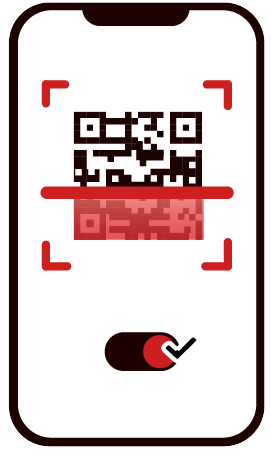

 QR code setup instruction
 Manual setup instruction